
Deliveries
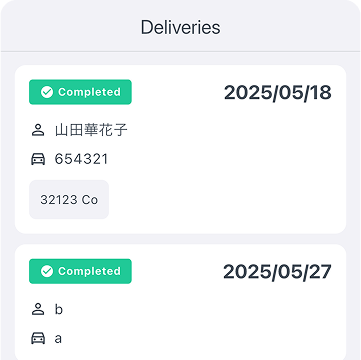
Deliveries listed as cards with their status and delivery date.
What the app can do, feature by feature: registering deliveries, checking them on a calendar, and managing customers and vehicles. We also say plainly what it doesn't do.
The deliveries, customers and vehicles lists.
Deliveries listed as cards with their status and delivery date.
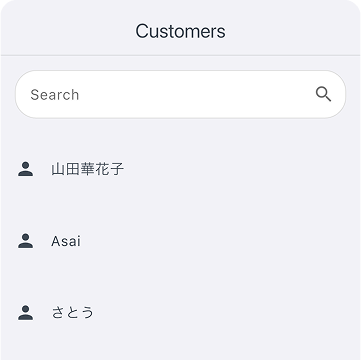
Register customers and filter them with the search box.
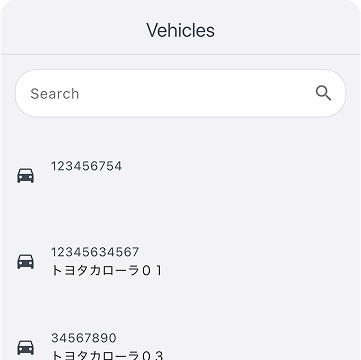
Register vehicles and filter by VIN or model.
Screens shown use sample data.
From registering a delivery to checking it on the calendar and tracking its status.
Register each delivery with a vehicle, a customer, a scheduled date and time, a status and notes. The status starts as “Scheduled”.
A Sunday-start monthly calendar shows delivery times as chips colored by status (up to two per day; more appear as “+N”). Tap a date to see that day's deliveries, or choose statuses to filter. Each delivery card shows its status, date, customer, vehicle and memo.
Note The calendar and cards show deliveries for the month on screen. There is no keyword search for deliveries, and no week or day view.
Four statuses (Scheduled, In Progress, Completed and Cancelled) are told apart by color (blue, orange, green, red) and icon. You can change a status from the edit screen, in any order.
Note Nothing switches a delivery to “In Progress” automatically; you choose it yourself.
Edit the vehicle, customer, date and time, status and memo afterward, including swapping in a different vehicle or customer. Deleting is done from the edit screen.
Note A deleted delivery can't be restored.
Keep the people you deliver to and the vehicles you deliver in a form that is easy to register and search.
Store seven fields: name, phonetic name, email, phone, address, memo and birth date (only the name is required). List, view, edit and delete customers, and type in the search box to filter by name, phonetic name, email, phone, address or memo.
Note The list can't be sorted. Email and phone formats aren't checked, and there is no tap-to-call or tap-to-email. A deleted customer can't be restored.
Store eleven fields: VIN, stock number, model, year, color, mileage, status, purchase price, selling price, purchase date and memo. Only the VIN is required. Search by VIN, stock number, model, color or memo.
Note There are no fields for make or trim; the model is free text. VIN length, format and duplicates aren't checked. A deleted vehicle can't be restored.
Choose In Stock, Reserved, Delivered or Sold Out for each vehicle. The state appears on the vehicle's details.
Note This is a manual record. It doesn't change automatically when a delivery is registered or completed.
Signing up, and the basics you use every day.
Create an account with your email address, a password and a name or company name. Log in with your email address and password.
Note There is no guest mode and no sign-in with another account.
Changes appear on every device logged in with the same account. Data is stored per account, and one account corresponds to one store's data.
Note There are no per-staff accounts or permission settings.
Choose Follow System Settings, Light Mode or Dark Mode. The display language follows your device and can also be chosen in the Settings tab. Japanese and English cover the main feature screens (a few screens, such as password reset, are Japanese only). About 70 other languages cover basic screens only.
You can delete your account from Settings in the app. In version 1.0, only your account details and login are deleted, and your customer, vehicle and delivery data stays on the server.
Here is what the app covers and what it doesn't.
Available for iPhone and iPad (iOS 18.0 or later) and Android (7.0 or later). Sign up with your email address and get started. An internet connection is required.
An account (email and password) is required. Free to download from the stores (as of September 29, 2026).


Scan with your phone to install

